

Webflow CMS Explained: How Collections Work in 2026
Key Takeaways+
- The Webflow CMS has five parts: Collections, items, fields, Collection pages and Collection lists.
- Webflow offers 16 field types, including Reference and Multi-reference for linking Collections.
- Premium ($25/mo billed yearly) includes 20,000 CMS items and 40 Collections per site.
- Items can be Draft, Queued, Scheduled, Published or Archived, and Unpublish works instantly.
- CMS pages can pull SEO titles, descriptions and Open Graph images from fields.
- Limits from the old CMS and Business plans, like "2,000 items", are out of date.
The Webflow CMS is a visual content management system built into Webflow. It stores repeatable content, such as blog posts, team bios and case studies, in databases called Collections. One template page then turns each item into its own live page, with no backend code. Editors publish content without touching the design.
At Dscvred Studio, we’re a Certified Webflow Partner building CMS structures for fintech, finance, healthcare and B2B SaaS teams. This guide covers how Collections work, 2026 plan limits and whether the Webflow CMS is worth it.
What Is the Webflow CMS?
It's a code-free content database inside Webflow. You design a layout once, connect it to your content, and every new item follows that design.
Is Webflow a CMS?
Yes. Webflow is a website builder and a CMS in one tool. The Designer controls layout, and the CMS controls content that repeats. New to the platform? Start with what Webflow is.
Static content vs dynamic content
- Static content lives on one page, like your homepage hero.
- Dynamic content lives in the CMS and appears across many pages, like articles or advisor bios.
If you'll publish more than a few of something, it belongs in the CMS.
How Webflow CMS Collections Work
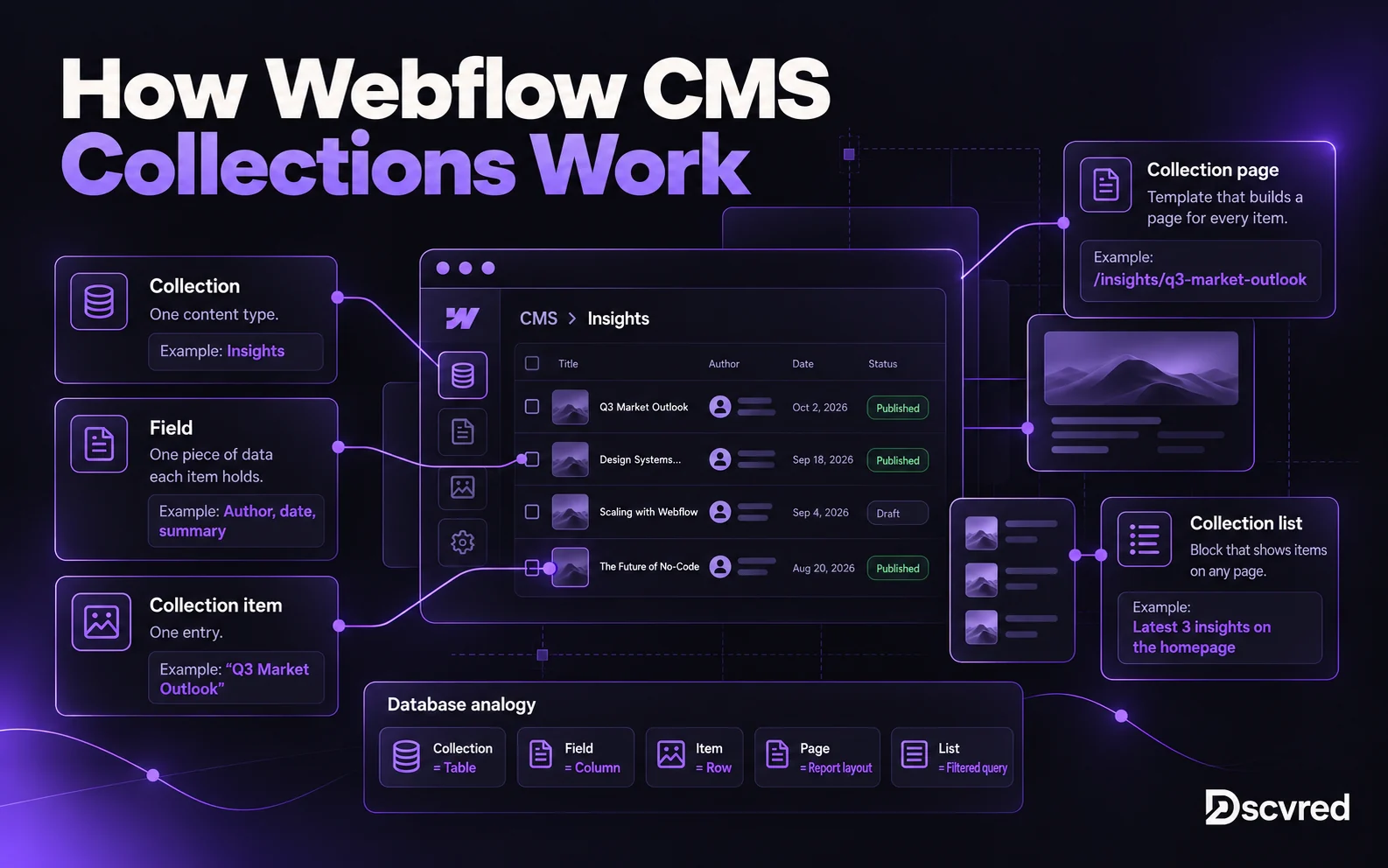
Collections work like tables in a database. The Collection is the table, fields are the columns, and each item is a row. Templates and lists then show those rows on your site.
| Part | What it is | Database comparison | Example |
|---|---|---|---|
| Collection | One content type | Table | Insights |
| Field | One piece of data each item holds | Column | Author, date, summary |
| Collection item | One entry | Row | "Q3 Market Outlook" |
| Collection page | Template that builds a page for every item | Report layout | /insights/q3-market-outlook |
| Collection list | Block that shows items on any page | Filtered query | Latest 3 insights on the homepage |
Collection pages vs Collection lists
A Collection page is a template that powers one page per item. Webflow creates it when you create the Collection.
A Collection list is a block you place on any page to show several items. You can filter, sort and limit it, such as "3 newest insights" on your homepage.
Reference and Multi-reference fields
Reference fields connect Collections. A Reference field links an item to one item in another Collection, like an article to its author. A Multi-reference field links to several, like an article to three topics.
This keeps data in one place. Update an advisor's job title in the Team Collection, and every article that references them updates too.
Webflow CMS Field Types
Webflow offers 16 field types, according to its Collection fields documentation.
| Group | Field types | Typical use |
|---|---|---|
| Text | Plain text, Rich text | Titles, summaries, article body |
| Media | Image, Multi-image, Video, File | Headshots, galleries, PDFs |
| Contact and links | Link, Email, Phone | Booking links, office contacts |
| Data | Number, Date/Time, Switch, Color, Option | Sort order, dates, filters |
| Relationships | Reference, Multi-reference | Authors, topics, related content |
The Switch field is an on or off toggle, useful for a "Featured" flag. The Option field gives editors a fixed dropdown, which keeps tags consistent.
Key Features of Webflow's CMS
Four features stand out: visual binding, safe editing, imports and APIs, and CMS-driven SEO.
Visual binding
In the Designer, you connect each element to a field. A heading shows the item's title, and an image shows its photo. You see real content while you design.
Safe editing for marketers
Content editors add and update items without opening the Designer. They can't break the layout, because the design is locked to the template.
CSV import and the CMS API
You can bulk import items from a CSV file, which speeds up a blog migration. Developers can create and publish content through the Webflow CMS API. Apps connect the CMS to tools like Zapier and HubSpot.
CMS-driven SEO
Collection pages can pull their meta title, meta description and Open Graph image from fields. Webflow adds every published item to your sitemap. One template sets SEO rules for hundreds of pages.
Example: An Insights Collection for a Financial Firm
Here's a schema we'd use for a wealth management firm's Insights section.
| Field | Type | Why it's there |
|---|---|---|
| Title | Plain text | Headline and SEO title |
| Summary | Plain text | Card text and meta description |
| Body | Rich text | Full article |
| Author | Reference (Team) | Name, photo and title from one source |
| Topics | Multi-reference (Topics) | Filters and related articles |
| Publish date | Date/Time | Sorting and display |
| Last reviewed | Date/Time | Shows readers the content is current |
| Disclosure type | Option | Shows the right disclaimer block |
| Featured | Switch | Pins the article on the homepage |
The Disclosure type field matters for regulated firms. One Option field shows the correct disclaimer on every article, so nobody pastes it by hand.
Case study: a CMS the marketing team can run
PackageX, a logistics tech company, had a Webflow site its marketers couldn't edit. Every new page took about a week through engineering. We rebuilt the site from reusable sections and structured the CMS around the content the team updates. Publishing went from one week to same day, and 28 pages went live in the first 3 weeks. Read the PackageX case study.
Publishing and Unpublishing CMS Items
Webflow gives every CMS item a status, so you decide when content goes live. Webflow's publishing guide lists five statuses.
| Status | What it means |
|---|---|
| Draft | Saved but not live. A site publish skips it. |
| Queued to publish | Goes live at the next site publish |
| Scheduled | Goes live at a set date and time |
| Published | Live on your site |
| Archived | Kept in the CMS, removed from the live site |
How to unpublish a CMS item
- Open the Collection and select the item.
- Open the item's publish options.
- Choose Unpublish. The item leaves the live site at once and returns to Draft.
Choose Archive instead to remove it at the next full publish and keep it for records. You can unarchive it later.
A review step for regulated content
Scheduled publishing isn't available on the Starter or Basic plans. It also only works for items that have never been published. On Premium and above:
- The writer saves the article as a Draft.
- Compliance reviews it on the staging domain.
- The writer fixes notes and updates the Last reviewed date.
- The site manager schedules or queues the item.
This guide explains website implementation. It isn't legal or compliance advice. Confirm requirements with your compliance team.
Webflow CMS Limits and Pricing in 2026
CMS limits apply per site and depend on your site plan. In May 2026, Webflow merged its CMS and Business plans into one Premium plan with 20,000 items, per its pricing update.
| Plan | Price (billed yearly) | CMS items | Collections |
|---|---|---|---|
| Starter | Free | 50 | 20 |
| Basic | $15/mo | No CMS | No CMS |
| Premium | $25/mo | 20,000 | 40 |
| Team | $2,500/mo (annual contract) | 20,000 | 100 |
| Enterprise | Custom | Custom | Custom |
Figures come from Webflow's pricing page, checked October 2026. The old CMS plan allowed 2,000 items and 20 Collections. Existing sites move to Premium at renewal, and legacy plans follow by November 16, 2026.
Is the Webflow CMS Worth It?
Yes, for marketing sites with up to 20,000 items that need strong design and easy editing. It's a weaker fit for libraries beyond 20,000 items, or for teams that need page branching without a Team plan.
| Strengths | Limitations |
|---|---|
| Design and content in one tool | 20,000-item cap below Enterprise |
| No plugins or database to maintain | Scheduled publishing needs Premium or higher |
| Editors can't break layouts | Page branching only on Team and Enterprise |
| CMS-driven SEO and sitemaps | Not HIPAA compliant by default |
Planning a site around these limits? Our Webflow development team designs the Collection structure, migrates content and trains your editors.
Webflow CMS vs Other CMS Platforms
Webflow is a smaller CMS by market share but a strong pick for design-led marketing sites. These are the top 5 CMS platforms by share of all websites, according to W3Techs in October 2026.
| CMS | Share of all websites | Best for |
|---|---|---|
| WordPress | 39.6% | Plugin-heavy sites, full server control |
| Shopify | 5.3% | Online stores |
| Wix | 4.2% | Small business sites |
| Squarespace | 2.4% | Simple portfolios and small sites |
| Webflow | 0.8% | Design-led marketing sites with a CMS |
HubSpot's CMS holds 0.2%. Its Content Hub starts at $10 per seat per month on a new-customer promotion, and Professional starts at $500/mo. Many teams build in Webflow and send form leads to HubSpot's CRM.
Can you build a CMS slider in Webflow?
Yes. Webflow's built-in Slider doesn't connect to a Collection list on its own, so teams use a Collection list with a slider script like Swiper, or an app from the Webflow Marketplace.
Need Help Structuring Your CMS?
A clean Collection structure saves your team hours every month. We plan the schema, build the templates and train your editors in every Webflow development project. See how we work with financial services firms, or book an intro call.
FAQ
What is a CMS item in Webflow?
A CMS item is one entry in a Collection, such as a single blog post. It stores data in the Collection's fields and gets its own page from the Collection template.
Is Webflow's CMS free?
Partly. The free Starter plan includes 50 CMS items. A live site with a blog needs Premium, which costs $25/mo billed yearly.
Can marketers publish CMS content without a developer?
Yes. Once Collections and templates are built, editors can add, edit and publish items without touching the design.
What's the difference between Unpublish and Archive?
Unpublish removes a live item at once and returns it to Draft. Archive removes it at the next full publish and keeps it in the CMS.
Does the Webflow CMS have an API?
Yes. The CMS API lets developers create, update and publish items from other systems. It's how teams connect the CMS to custom tools and automations.